BoardCerts learning management system lets you create your own custom question bank for your board certification prep. You can create a question bank by choosing the domains and topics from the official exam blueprint, with a similar ratio of questions.
In this article, you’ll learn:
1) How to Create a Custom Question Bank
2) How to Navigate the Question Bank
1. How to Create a Custom Question Bank
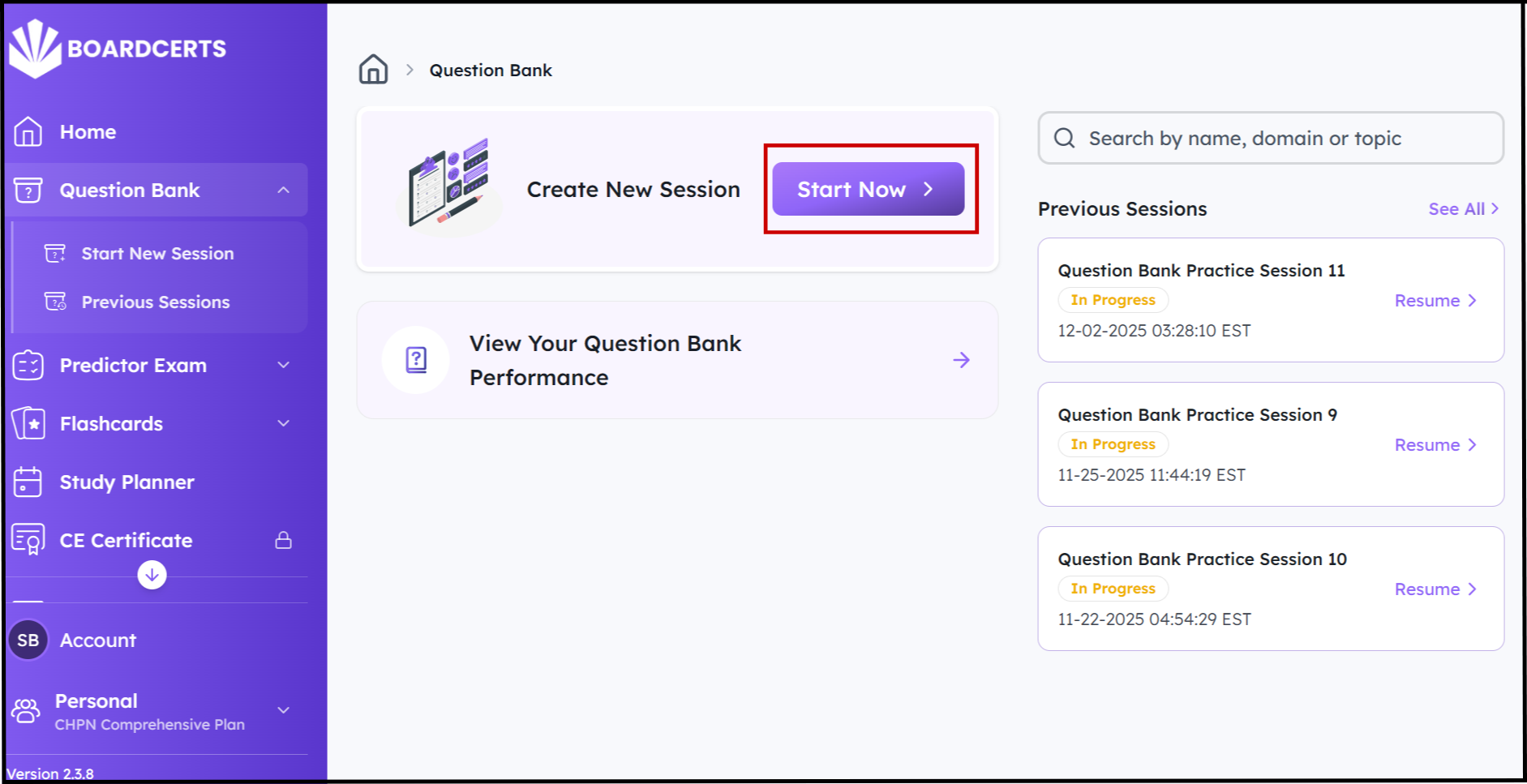
Step 1. Go to Question Bank from Home Page and Click “Start Now” on Create New Session
Step 2. Select the Domains and Topics you want to work on then click “Next.” You can also filter the questions by their status, or create a session with all available questions.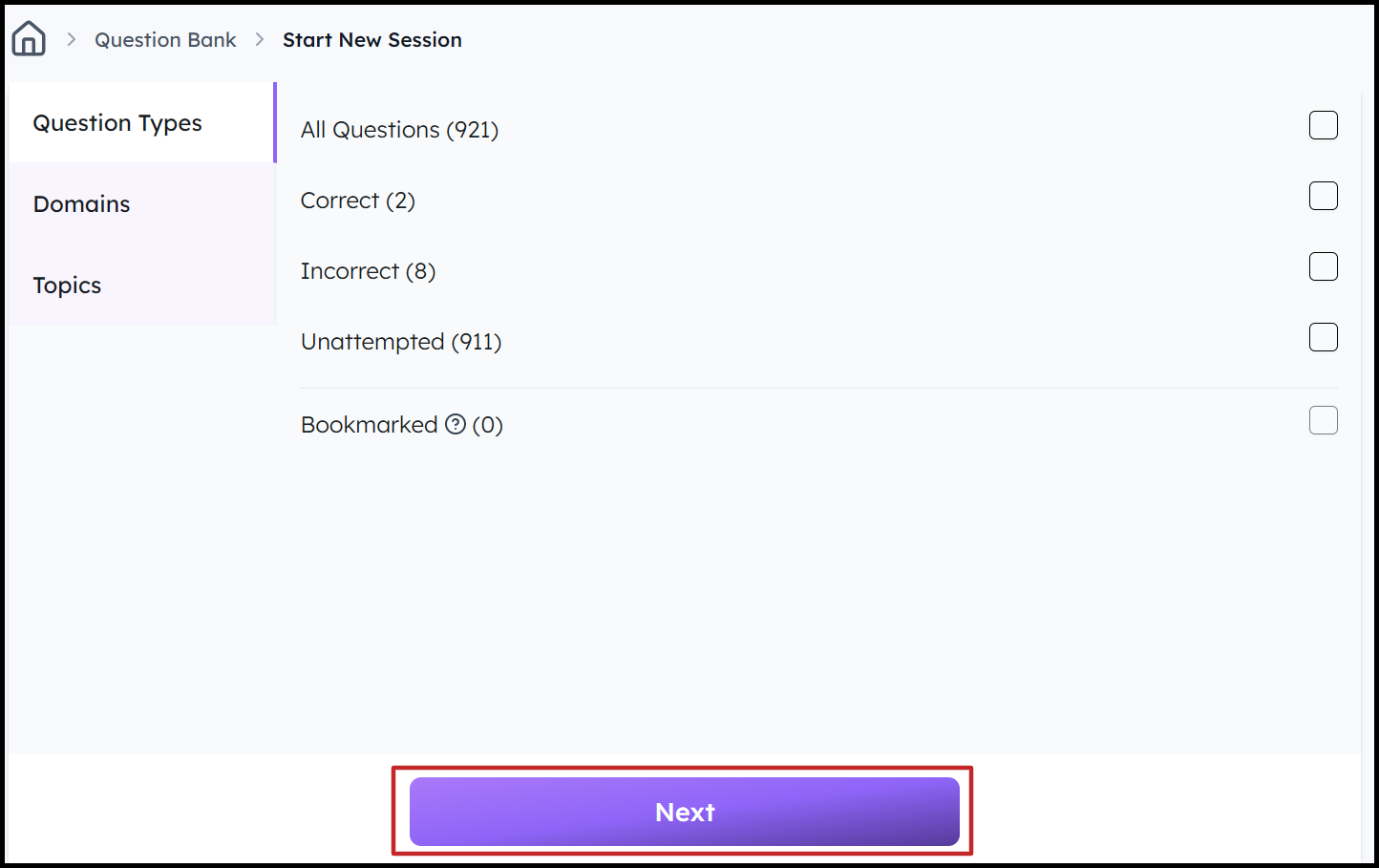
Step 3. You’ll be then directed to the Question Bank Session Settings:
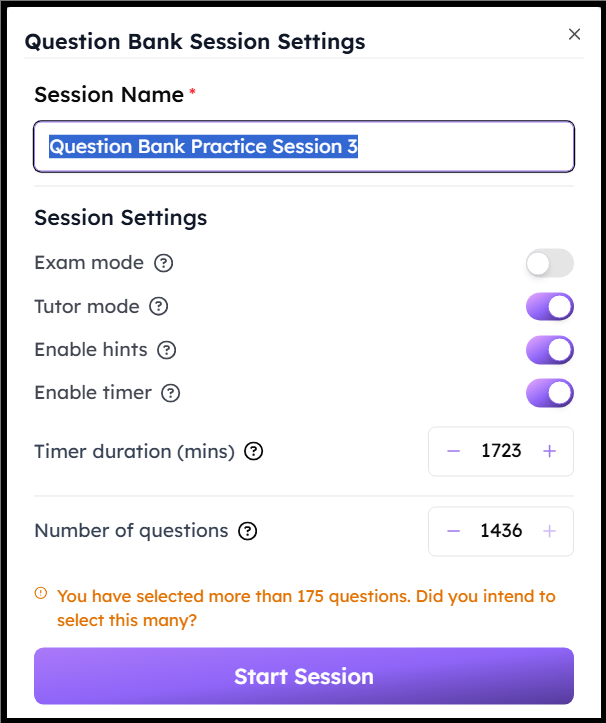
Here, you’ll be able to toggle between Exam and Tutor Modes, and toggle other settings according to your study needs, in this article, we have enabled the timer:
- Exam Mode
-
Allows you to review answers and explanations only after the session is complete
-
Will disable hints
-
Is a timed exam so you can create a simulation of the actual exam situation
- Tutor Mode
-
You can review the answers and explanations for each question as you go through them.
-
Hints are enabled and you can complete the session in your own pace or enable the timer before starting the session.
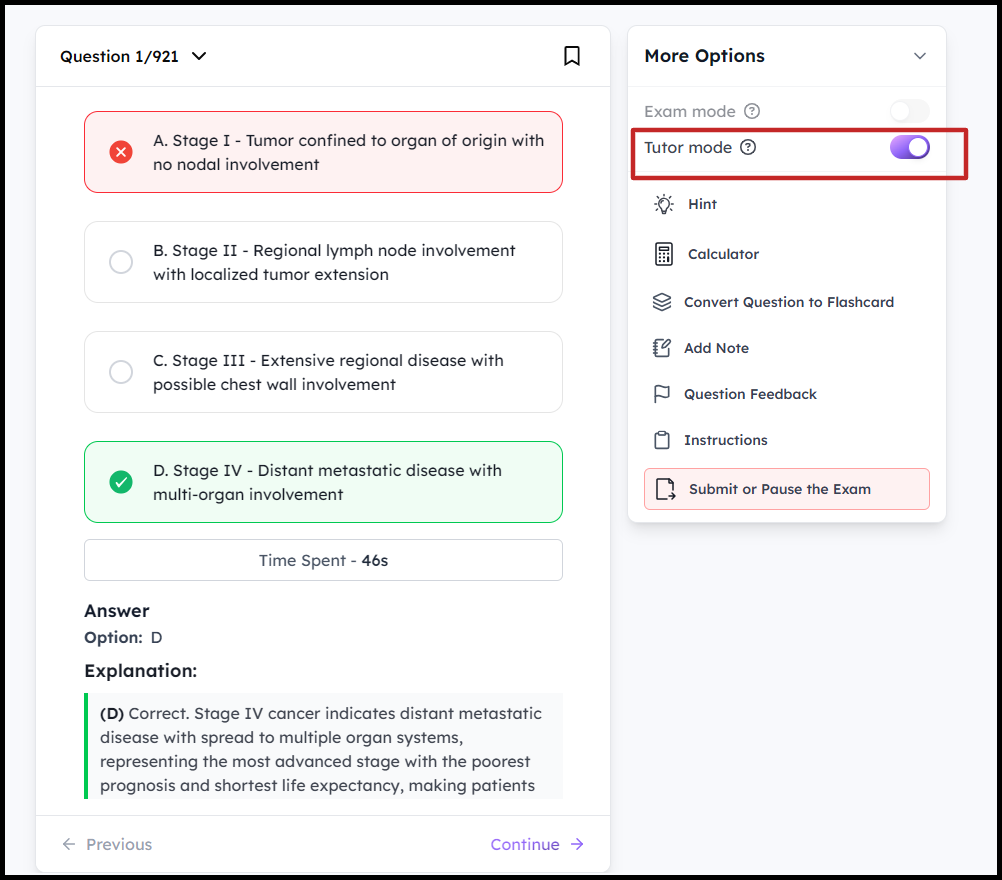
The number of questions selected will also depend on the domains and topics you choose
2. How to Navigate the Question Bank
Once you’ve created the question bank session, you can start practicing the questions. There are a few features to make this process easier and more dynamic.
Answering Questions vs Striking off
-
Striking Off:
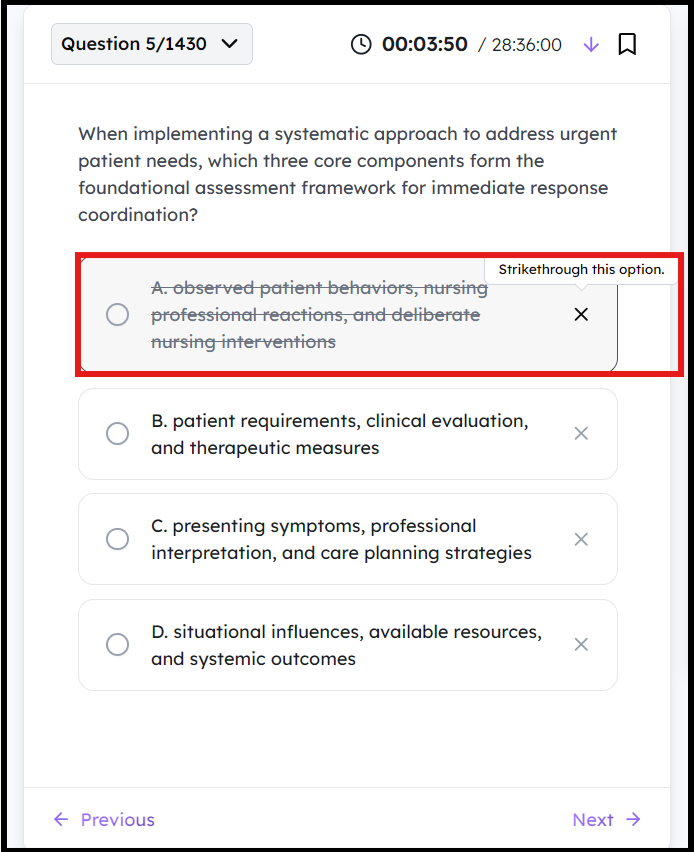
The BoardCerts Learning Management System offers a helpful feature to assist users in answering questions, particularly those that require the elimination method; much like real-world exams. You can simply strike off incorrect options sequentially until you identify the correct answer.
To do this, click on the Cross Mark on the left of the question to strike it off
-
Answering:
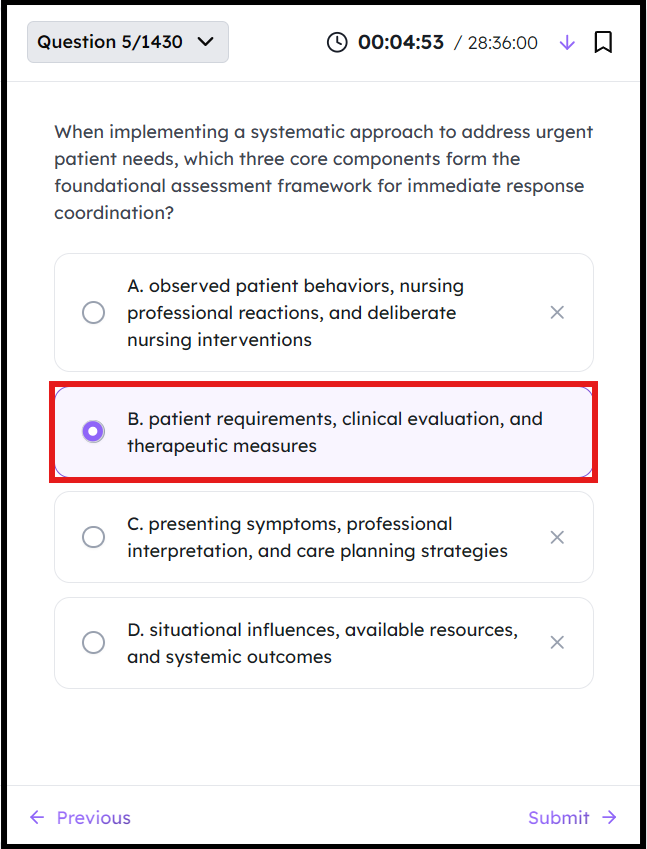
To choose the correct answer, click on the circle in front of the option and click Next, depending on the mode you’ve chosen, you’ll then either move on to the next question or review the explanation.
Bookmarking a Question
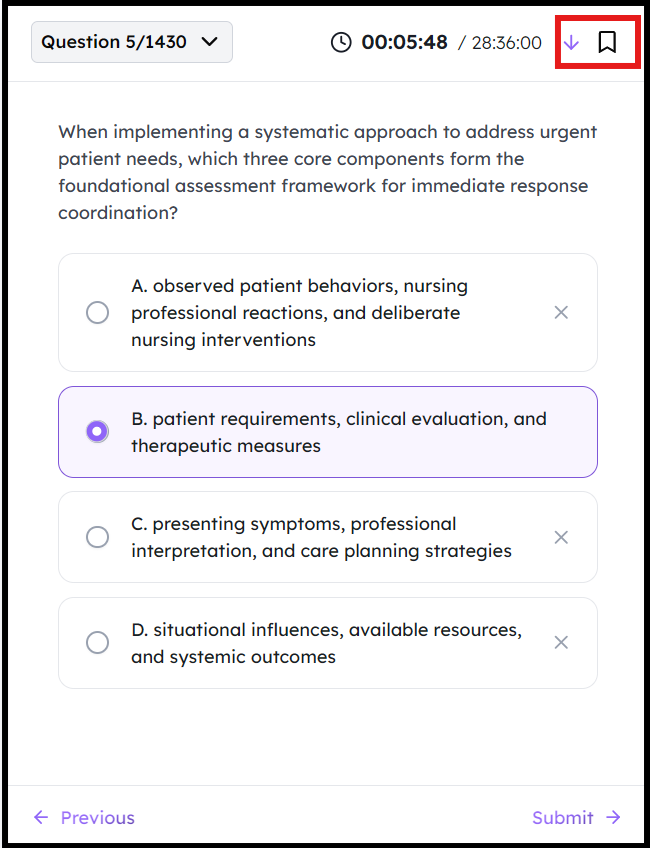
If you want to come back to a question later, you can use the bookmark button on the top right.
Navigation
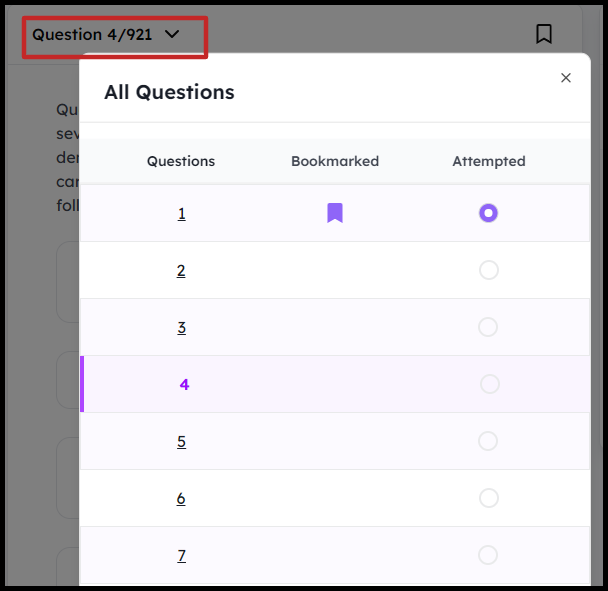
You can easily navigate to other questions or bookmarked questions by clicking on the dropdown in the top left.
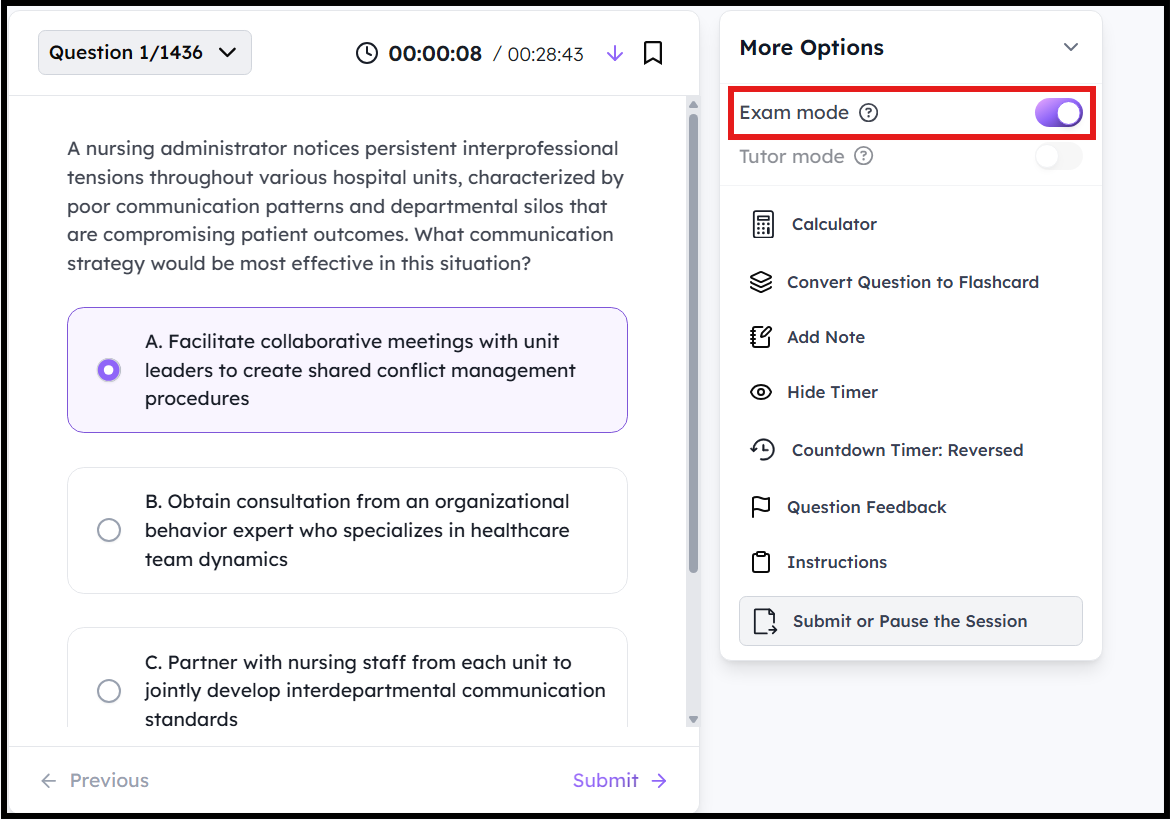
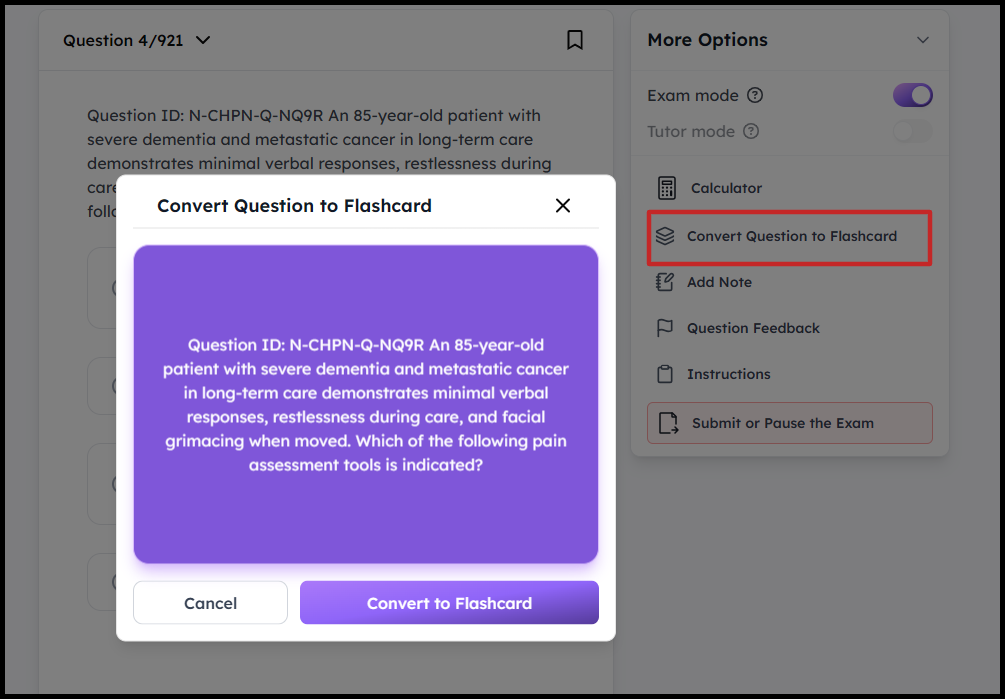
Clicking on the “More Options” dropdown on the right gives you the option to:
-
Toggle between Exam or Tutor Modes in the middle of the session
-
Use a calculator for basic calculations
-
Convert the Question to Flashcard
-
Add Notes to the Question
-
Provide a Feedback for the question
-
Review exam Instructions
-
Submit or Pause the Question Bank session (you can always pause a session and come back to it at a later time)
3. How to Review your Answers
Once you are done, you can submit your answers and review them. To do this:
Step 1. Click on Submit or Pause the Exam
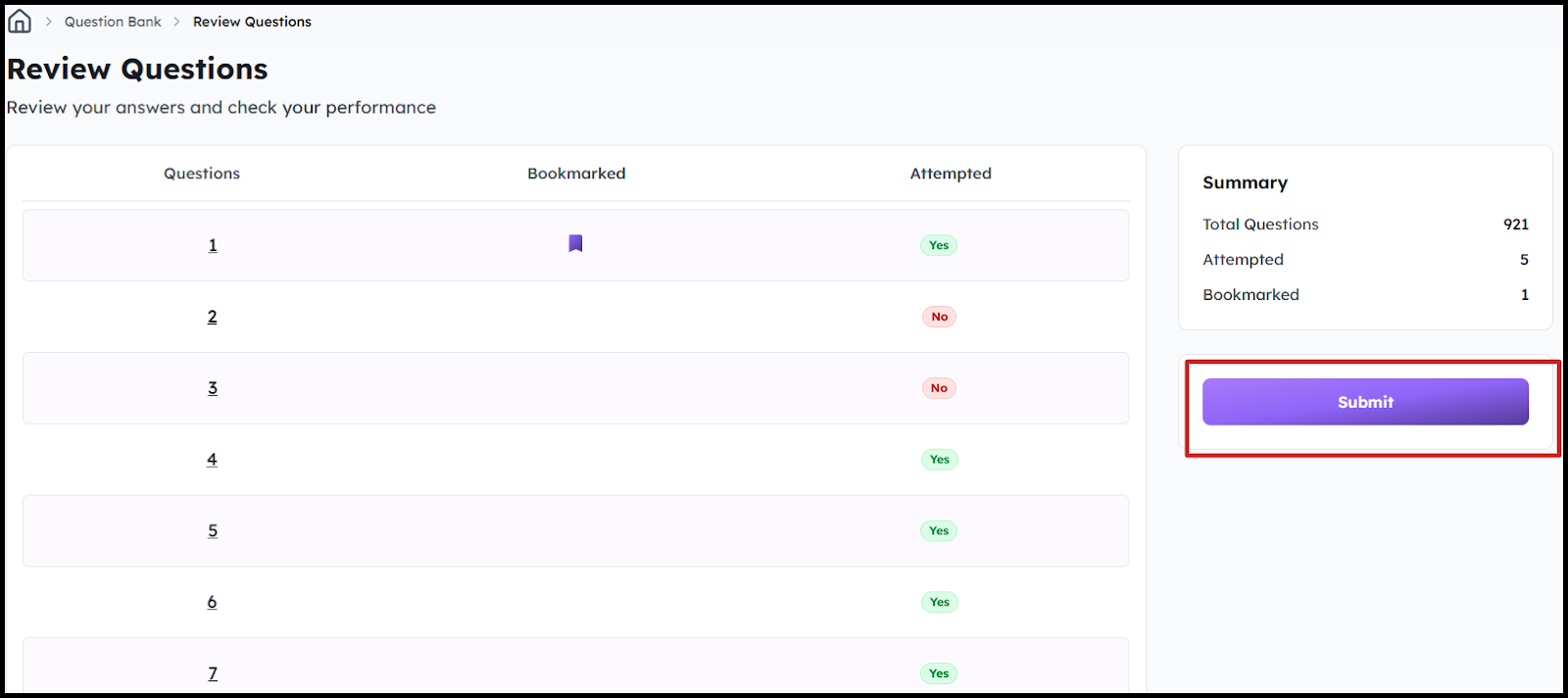
Step 2. Preview your submission, confirm that it is correct, then click on Submit
Before submitting, you can Double Click on the question in the table to go back and Edit your answers.
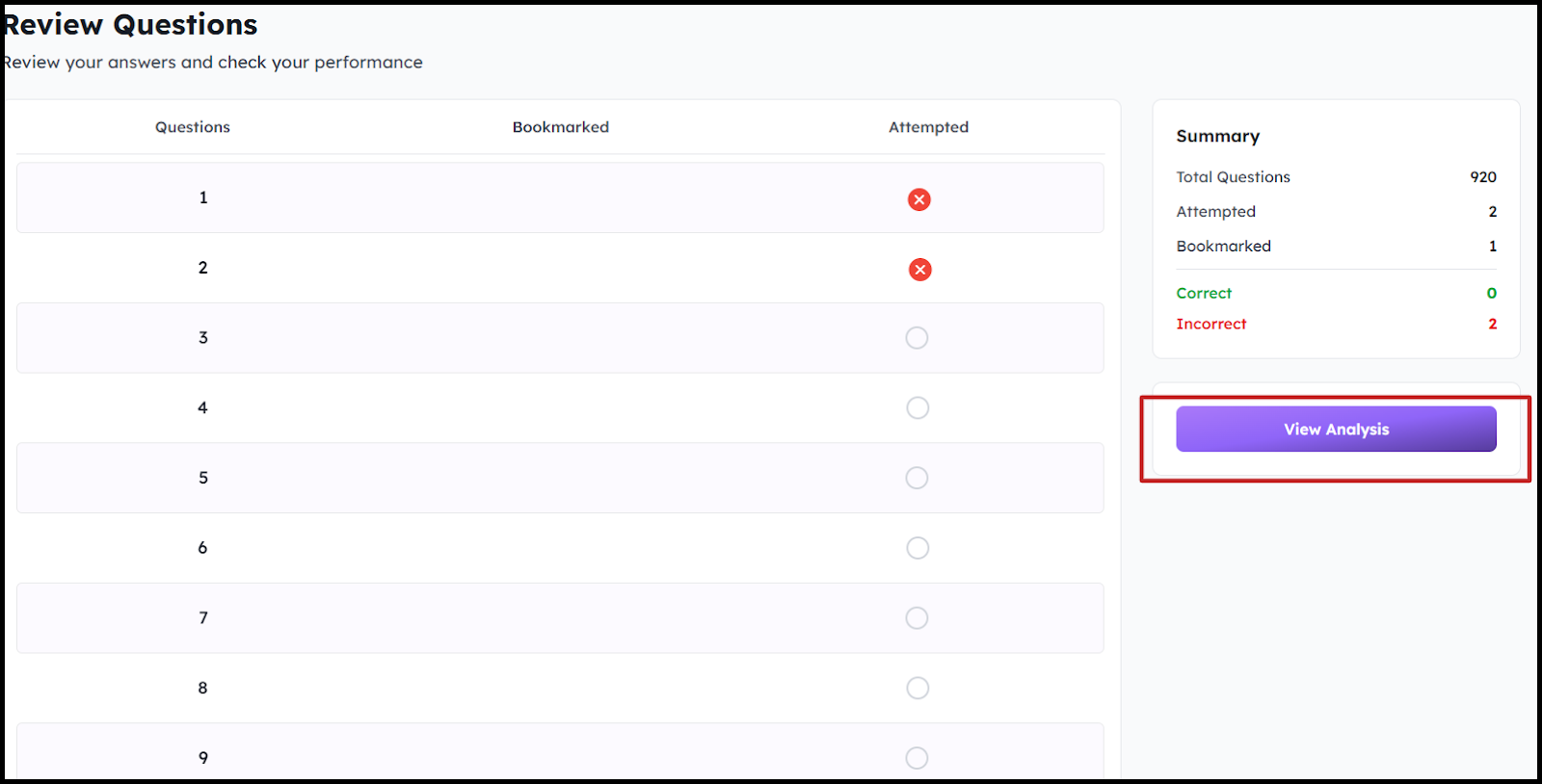
Step 3. Review the preliminary results then click on View Analysis for detailed breakdown of the results
Step 4. Go to Review Questions to review the correct answers and explanations for each question in the Performance tab. You can also choose to Get Report in Email, View your Study Plan, or Review Flashcards.
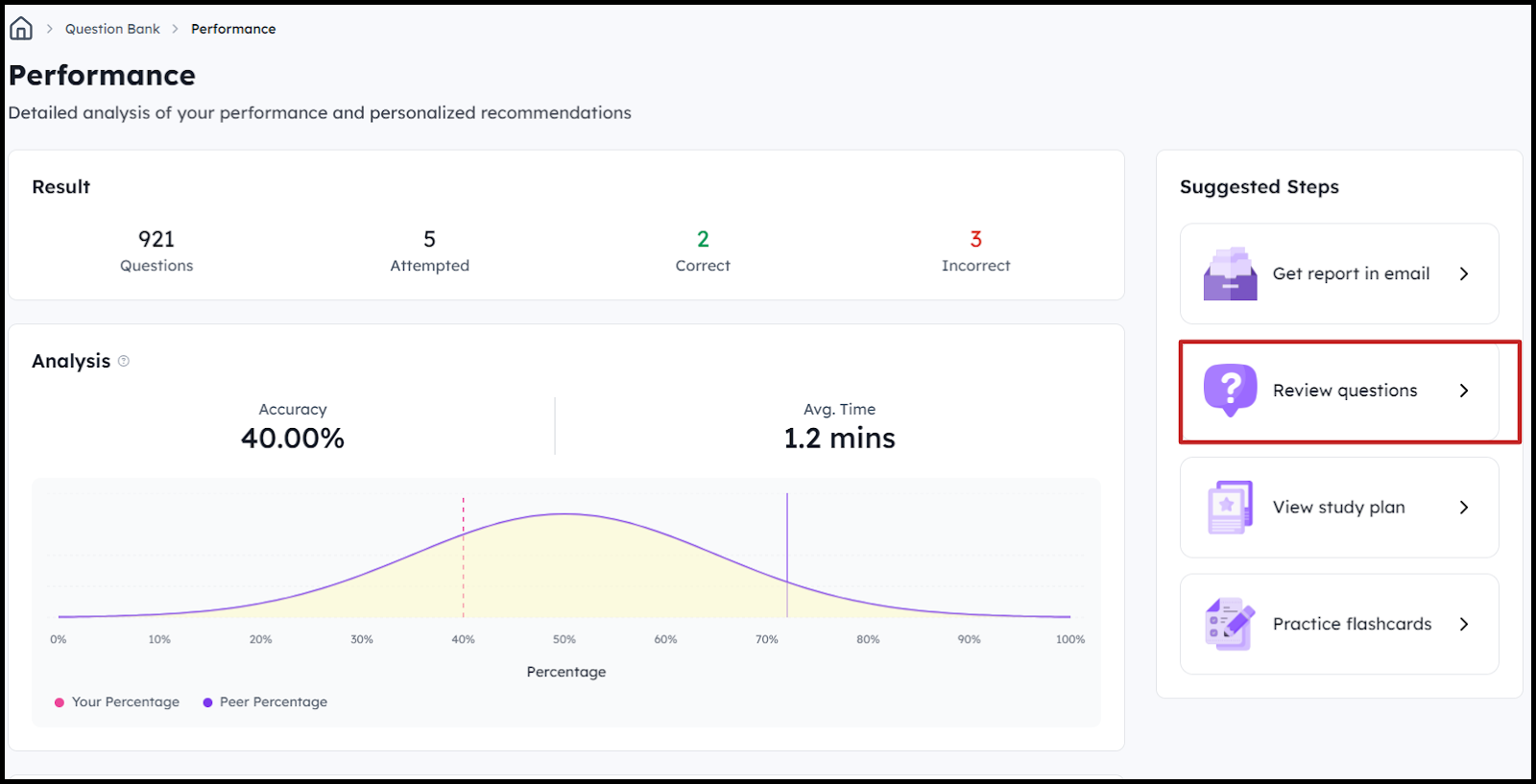
4. How to Review the Stats
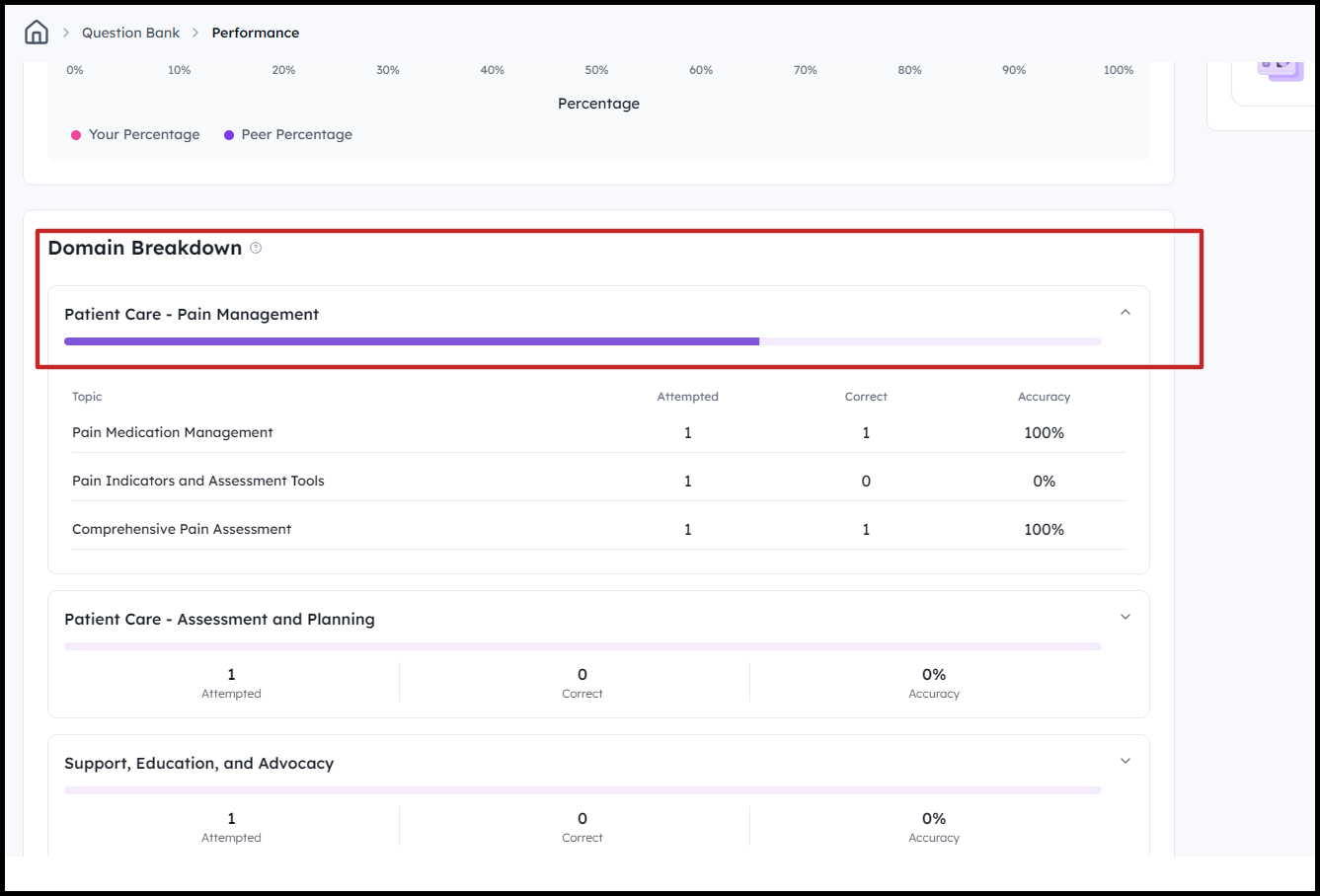
In the same performance tab, you view a breakdown of your results by Domains and Topics. This is especially helpful so that you can identify the exact domains/topics you need to focus on.
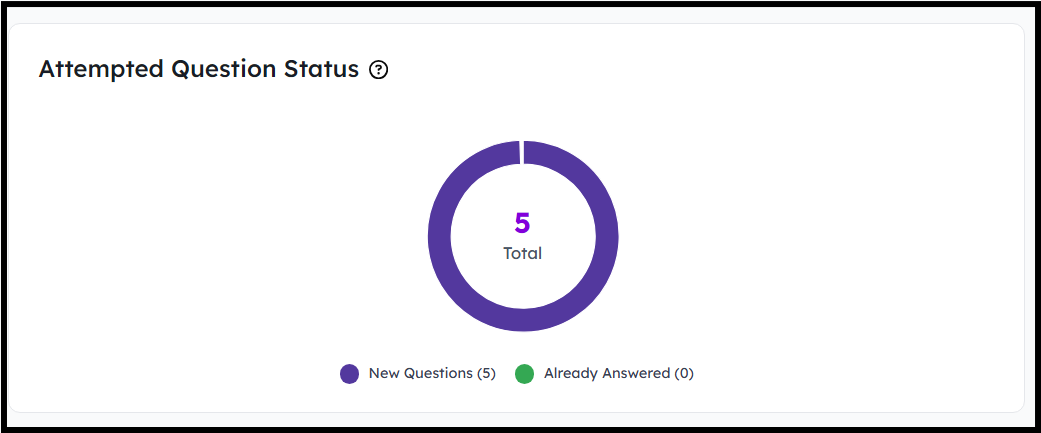
You can also view which questions from the current sessions were already attempted and which were new. This is specially helpful to track your progress.
Now you are ready to create question banks and start practicing.
